
A menu for every kind of cooking
Watch Cartazem on videoOne minute, no sound. It opens right here.
How it works
From your POS to your customer’s phone, without going through you.
Cartazem isn’t a second menu to maintain. It’s the same one you already have in  , made to look good.
You connect
Cartazem reads the categories, dishes, prices and allergens from your POS. What you already have is never typed again.
You design it your way
You pick a template, arrange the blocks, upload whatever photos you have and check the preview before publishing.
You publish and share
One button, a link of your own and a QR code for the tables. From then on, every change in
reaches the menu by itself.
Nobody types a price.
Your menu, up to date on every customer’s phone.
Figures for what Cartazem includes as standard. Which languages and which allergens your menu shows depends on your and on what you switch on in the dashboard.
Who is in charge of what
is in charge of the data. You, of how it looks.
Each thing lives in one place only. That way the menu can’t contradict the till.
Comes from
What you already have in the POS
- Dishes and categories. Each category arrives as a block on your menu.
- Prices. The POS’s, exactly as they are. They can’t be edited on the menu.
- Allergens. All 14 set by law, on the dish and as a filter for the customer.
- Additions and removals. A new dish appears marked; one that is removed stops showing.
You decide in the dashboard
What makes it your menu
- Design. Your venue’s templates, colours and typefaces.
- Order. Drag the blocks until the menu looks the way you want.
- What is shown. Hide a block or a dish without touching ; a sold-out dish is shown greyed out.
- Languages and photos. You complete any translations doesn’t bring and upload the photos you have.
The menu with photos
A dish catches the eye first.
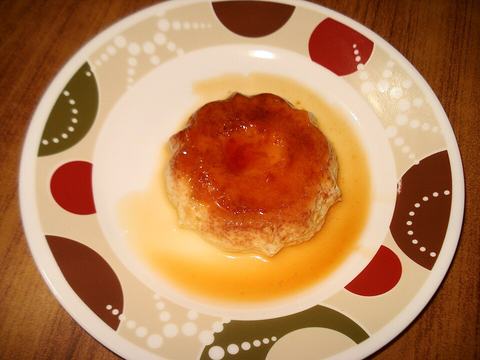
Each dish has its photo: the one already brings or the one you upload from the dashboard. And you choose how it looks, block by block.
The photos in this example are samples; on your menu, your own dishes’ photos appear.
Before and after
Raise a price. And that’s it.
With a printed menu, a price change is a small building job. With Cartazem it is one line in the POS.
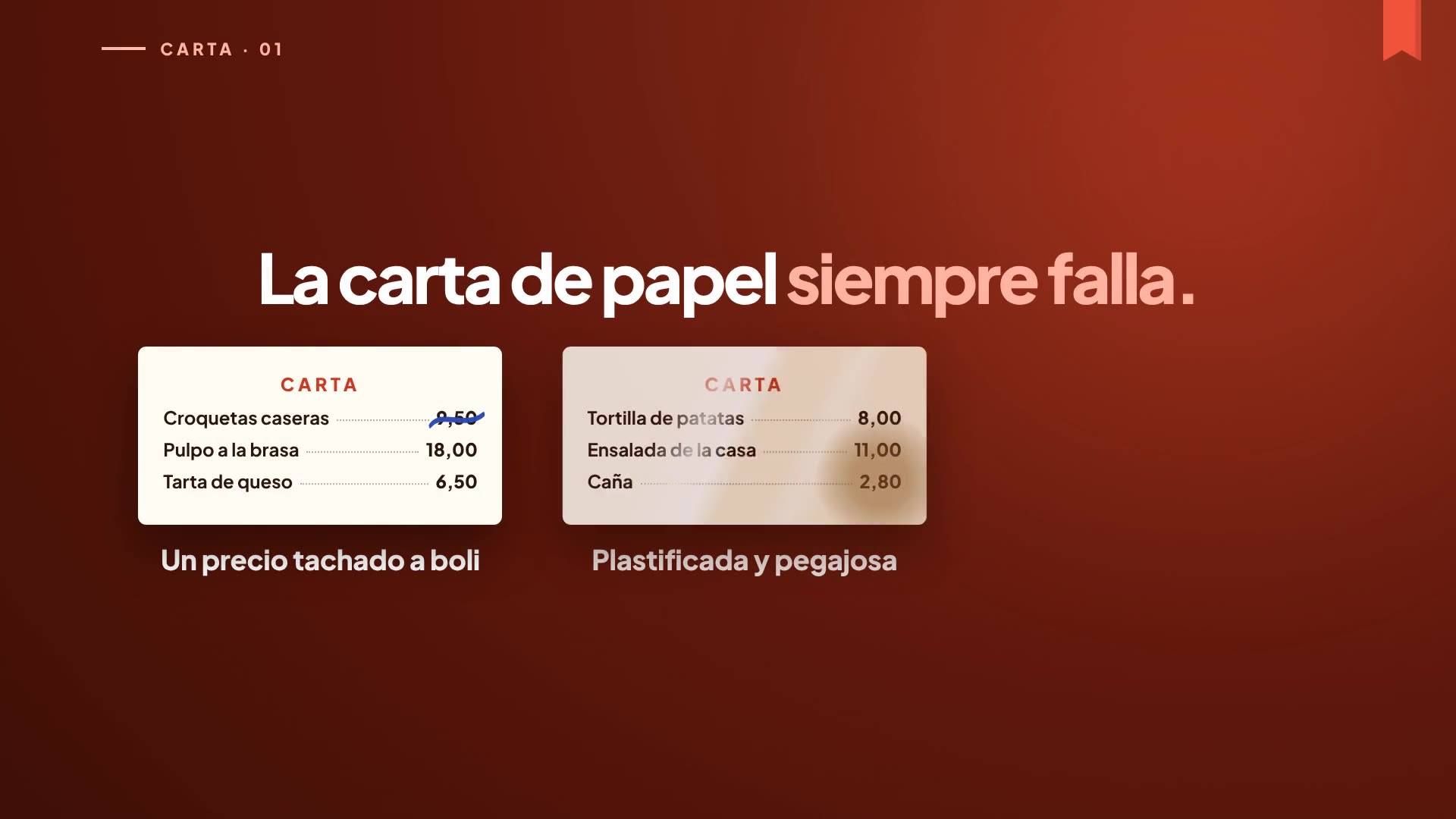
Reprinting every time a price goes up
- You change the price in the POS.
- You open the menu file and change it again by hand.
- You send it to print.
- You wait, collect it and hand the new menus out to the tables.
- Meanwhile, the menu on the table isn’t the one at the till.
You touch nothing else
You change the price in . The menu your customer sees on their phone already has it.
The editor, from the inside
Move a block and the menu rearranges itself.
Your categories are the blocks. You reorder them, change the design and see the result before publishing.
What it includes
A menu that looks good and works even better.
Designed for the customer who opens it one-handed, standing up, hungry.
Ten templates: a whole menu in one click
Skin, typefaces, accent, paper width and the style of each section, all decided at once and with good judgement. From there you adjust whatever you like: nothing locks you in and it doesn’t touch your dishes.
Search and filters
The customer types a dish or filters by “gluten-free”, “vegan only”… and the menu trims down instantly.
Sold out in half a minute
You mark a dish as sold out and the menu strikes it through within half a minute, with nothing to publish.
Photos, if you have them
You upload a dish’s photo and crop it to your taste. Without a photo, the dish still looks good.
It also comes out on paper
The same menu prints cleanly for the table or the counter, without the phone buttons.
Mark what you want to highlight
Add labels to your dishes: new, spicy, vegan, vegetarian, gluten-free, house special or recommended.
The menu of the day
The menu, with its courses and its price.
sends the menu with what it includes: starter, main, dessert and drink, and for each course, what can be chosen. Your customer sees it whole, without having to ask.
- Each course, with its options. Choose one, choose another: the menu reads like the blackboard.
- The supplement, in plain sight. If an option costs extra, it shows with its amount.
- The menu price is ’s. You change it in the POS and it changes on the menu.
One dish, several formats
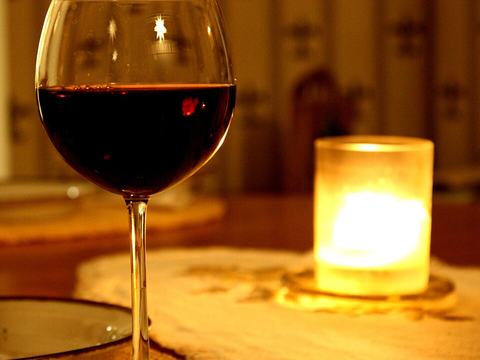
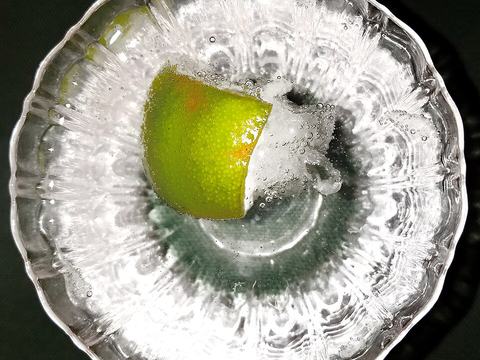
Glass or bottle. Tapa or full portion.
When a dish is sold in several formats, each one shows with its price. ’s, exactly as they are.

House wine
3,20 €
Glass · served on the spot
Homemade croquettes
Gin and tonic
Every dish, with its details
Tap a dish and it opens in full.
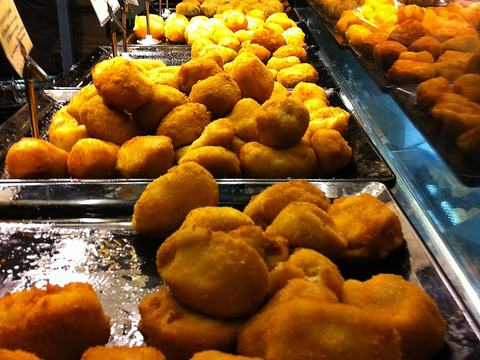
The large photo, the description, the allergens and any paid extras you have set up in your POS. So customers don’t discover an extra with the bill in front of them.
Menus with courses
A menu of the day with its “Choose 1”, and dishes that run out greyed out inside the menu itself.
Extras without surprises
The paid extras from your POS appear on the dish page, with their price.
Photos that look good
You crop the photo in the dashboard and it shows on the menu just as you leave it.
Any service
What happens in the venue, and what the customer sees.
Three moments of the day that used to mean a phone call to whoever lays out the menu.
A seasonal dish comes in
You add it in as usual. In your dashboard it appears marked “Nuevo en ” (New in ), ready to place wherever you like.
The rice runs out
You mark it as sold out in the dashboard. Within half a minute the menu shows it greyed out and struck through, with nothing to publish. Nobody orders what isn’t there.
The beer goes up
You change the price in , where you already change it to ring up. The menu the tables see carries the same price as the till.
The menu for every hour
Every hour, its own menu.
Each category brings its schedule from and the menu respects it by itself. You can also set rules by day and by hour from the dashboard.
13:05
Lunch
The times and menus in this example are made up. Several menus can live under a single address.
More than a PDF with a QR
A proper digital menu.
A PDF uploaded to a website is a piece of paper on a screen. This is a menu that understands dishes.
, and that’s itAllergens and regulations
Clear allergens, in any language.
The fourteen allergens that must be declared under Regulation (EU) No 1169/2011 are in Cartazem with their icon and their name. Your POS marks them on each dish’s page; the customer sees them on the dish and uses them to filter.
Cartazem shows the allergens you have registered in . Keeping them up to date on each dish’s page is still the venue’s job.
Languages
Your menu speaks the tourist’s language.
The allergens and the menu texts already come translated. sends the name and description of each dish in the languages declared in your POS, and they come in by themselves; whatever is missing you complete in a list, from top to bottom. And if the customer’s phone is set to one of your languages, the menu opens directly in it.
Example with a dish from a made-up menu. You supply the dish names.
QR and how it’s shared
A QR on the table. A link in any chat.
Your menu has its own address: there is nothing to install, and it opens in the browser of any phone.
- Menu QR code. You download it from the dashboard and put it wherever you like: door, counter, window.
- Sheet with a QR per table. Each table, its own code, ready to print.
- Share button. The customer sends the menu to whoever is with them, with one tap.
- One link per language. Each language has its own address and can be shared.
With Pantazem
The menu on the phone and the one on the wall are the same.
If you also have Pantazem, the menu reaches the venue’s screens too. You change a price and it changes on the customer’s phone and on the screen at the same time, because both come from the same place.
You’ve put the croquettes up to 10,00 €. The screen and the phone already say so.
Menu
Your venueTo share
Homemade croquettes10,00 €
Gluten · Milk · EggsChargrilled octopus18,00 €
MolluscsHouse salad11,00 €
Nuts · MustardRice dishes
Señorito rice16,50 €
Crustaceans · MolluscsDesserts
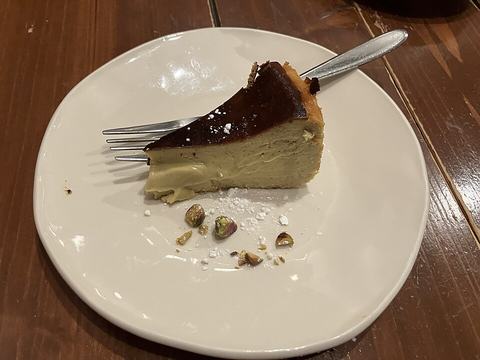
Cheesecake6,50 €
Milk · Eggs · Gluten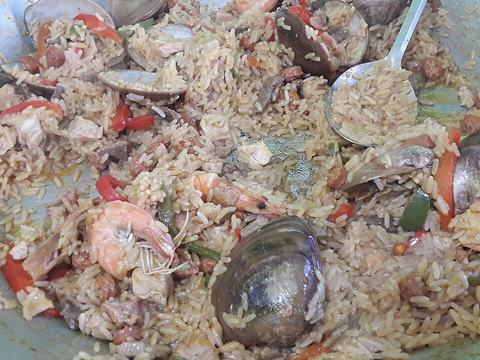
The printed menu
The paper one comes from the same menu.
Without redoing it in another program: you print it from the menu you already publish, with the same dishes, prices and allergens. Put a price up in and the next sheet already comes out right.
Connected to the rest
A menu doesn’t live alone.
Everything comes from , so what you do on the menu fits with the rest of what you have from appzem.
Several venues, one dashboard
If you have a chain, each menu belongs to a specific venue and all of them are managed from the same place. Each venue keeps its own menu and design.
The same prices, on the screens
With Pantazem, the menu also reaches the venue’s screens. What you see on the screen and what you read on the phone is what you charge at the till.
Let the customer become a member
The menu can carry a link to “Hazte socio” (Become a member) from Fidelizem, and show which table the new members come from. Only if you have Fidelizem.
Getting started
Getting started without building work.
There’s nothing to set up from scratch: the menu already exists in your POS.
- We show it to youA demo with your venue’s dishes, working.
- You choose the lookA starting template and your own colours and typefaces.
- You check the previewYou arrange the blocks and see the result before publishing.
- You publish and put the QR upOne button, one link and a code for each table.
No fear of touching things
A Saturday at 13:05, you go back to the previous one.
Every time you publish, a version is saved. If you don’t like something, you go back to an earlier one with a button: it is published as a new one and nothing is lost.
Guides
QR digital menu with TPVHow a price goes from to the menu on the phone, and how the allergens and the 10 languages work. Read the guideAllergens on the menu: what Regulation (EU) No 1169/2011 requiresWhat the rules say for bars and restaurants, the 14 allergens and how to keep the menu up to date with a digital menu. Read the guideQuestions
What people usually ask
Do I have to type the prices in anywhere?
No. The prices are ’s, and they can’t be edited on the menu. What you change in the POS is what the customer sees.
Do I need to have Ágora?
Yes. Cartazem is for venues that ring up with TPV: the dishes, prices and allergens all come from there.
Do my customers have to install an app?
No. The menu is a web page with its own address: it opens from the QR code or a link, in the phone’s browser.
What happens if a dish runs out mid-service?
You mark it as sold out in the dashboard and the menu strikes it through within half a minute, with nothing to publish. When it’s back, you unmark it.
Can I hide a dish or a category?
Yes, without touching . In the dashboard you hide the block or the dish and it stops appearing on the menu.
How many languages does it have?
Ten: Spanish, English, Catalan, French, German, Italian, Portuguese, Basque, Galician and Dutch. The allergens and the fixed texts come already translated; the names of your dishes come in translated if they already are in , and you translate any that are missing in the dashboard.
Does it look good on an old phone?
Yes. The menu is designed to open on any phone, even one from years ago, with nothing to install.
Can I use my venue’s colours and typeface?
Yes. You start from one of the ten templates and change the accent colour, the typefaces, the paper width and the style of each section.
What if I don’t have photos of the dishes?
No problem: the dishes look good without a photo. You add them when you have them, dish by dish.
Can the menu be printed?
Yes. The same menu prints cleanly, without the phone buttons, so you can have it on paper too.
What happens to my dishes if I change template?
Nothing. A template doesn’t touch the content: not the dishes, not the order, not the photos. It only changes how it looks.
Can I undo a change I don’t like?
Yes. Every time you publish, a version is saved and you can go back to an earlier one; it is published as a new one and nothing is lost.
What kind of venues use it?
Any venue that rings up with TPV and has a menu that changes: rice restaurants, tapas bars, grill houses, cafés, pizzerias, Asian restaurants and more.
Who has to touch the menu when I change something in Ágora?
Nobody. If you add a new dish, it appears in your dashboard marked “Nuevo en ” (New in ). You decide where to put it and what is shown.
Your menu, published this week.
We show it to you working with the dishes from your own venue. Nobody types a price.
Book your Cartazem demo
Your menu, on your customer’s phone
We set up your real menu and send you the QR. You see it on your own phone before deciding anything.
- Your dishes and your prices, read from your TPV.
- The QR ready for you to put on the table.
- No commitment: you see it working first.